
Configuring your Domain to receive email using Neoxea hosting platform is only necessary if you want to reset to our default configuration or if you want to replicate the setup on another DNS provider.
Update Domain DNS
The steps below need to be performed in the DNS dashboard of your DNS provider.
Step 1. Change MX records of your Domain DNS:
| Type | TTL | Record | Priority |
|---|---|---|---|
| MX | 3600 | mx.spamexperts.com | 10 |
| MX | 3600 | fallbackmx.spamexperts.eu | 20 |
| MX | 3600 | lastmx.spamexperts.net | 30 |
Step 2. Add SPF to TXT record of your Domain DNS:
| Type | TTL | Record |
|---|---|---|
| TXT | 60 | v=spf1 +a +mx include:relay.mailchannels.net -all |
MailChannels validation
Check if MailChannels service is provisioned in our platform, and if email routing is properly setup.
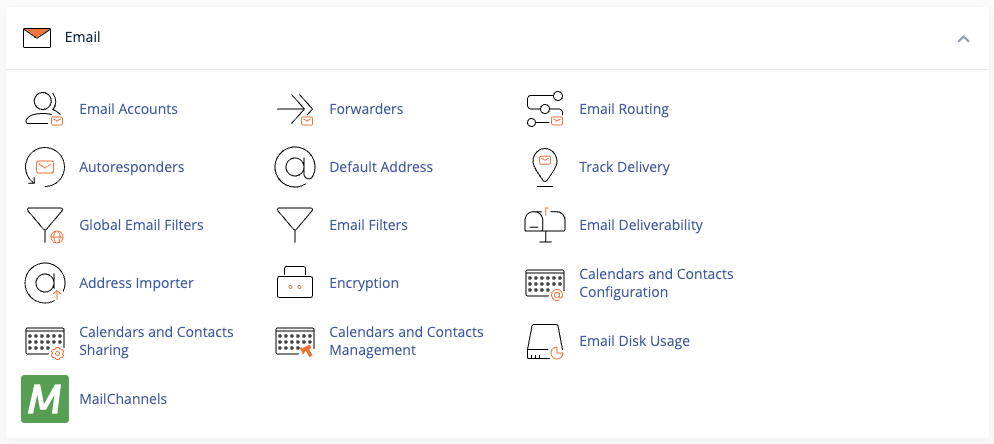
Step 3. Go to your cPanel and click on MailChannels icon.
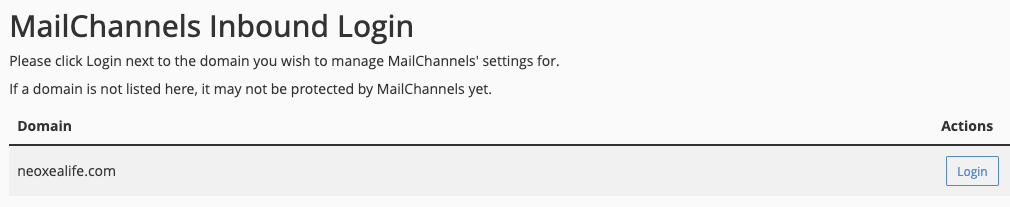
Step 4. Click on Login button.
Step 5. Click on Configure Downstream Records to expand the information and validate the information match as shown below.
Target: format is yourdomain.tld. (with a . in the end)
Port: 25
Weight: 1
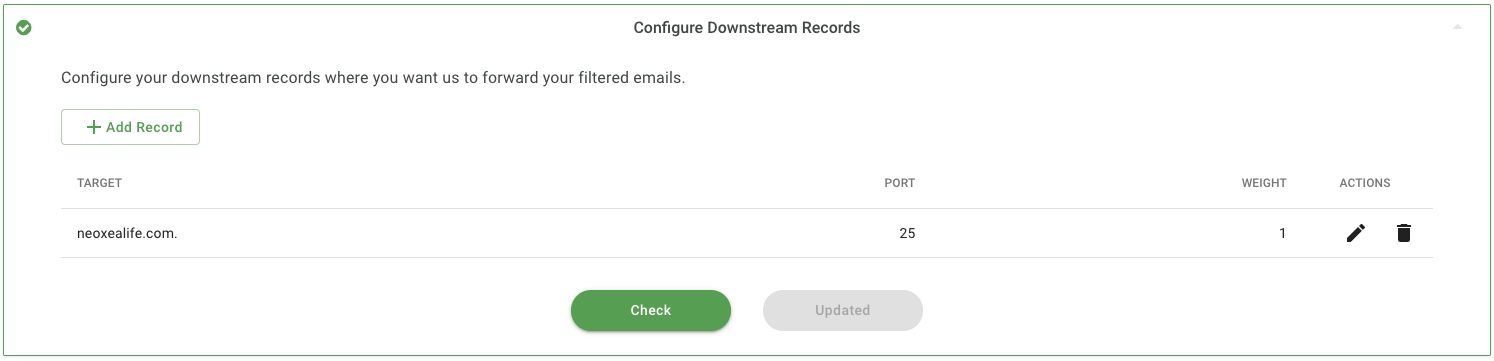
Step 6. If the information is correct, the setup is complete, and your sending and receiving email should flow as expected.
In case you need to change the information, click on the pencil on the right, type the correct information and click the check mark to save the changes.