Outlook is the most used Email client that allow you to check your email hosted with Neoxea. This article focus on the IMAP setup but you can also configure as POP3. If you are not sure which one to choose, follow our IMAP vs POP 3 guide to learn about the differences.
Incoming Email (IMAP)
Step 1. Open your Microsoft Outlook application and click File.

Step 2. Click on the + Add Account button.

Step 3. Type your full email address in the field Email address. In our example we use the email [email protected], but you should type in your email address.
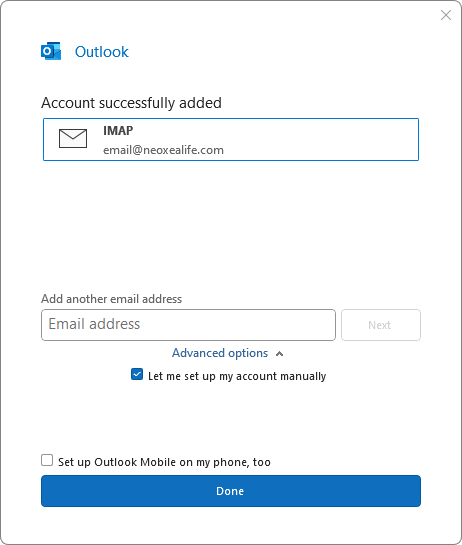
Additionally click on Advanced options and check the box “Let me set up my account manually“.
Click the Connect button to proceed.

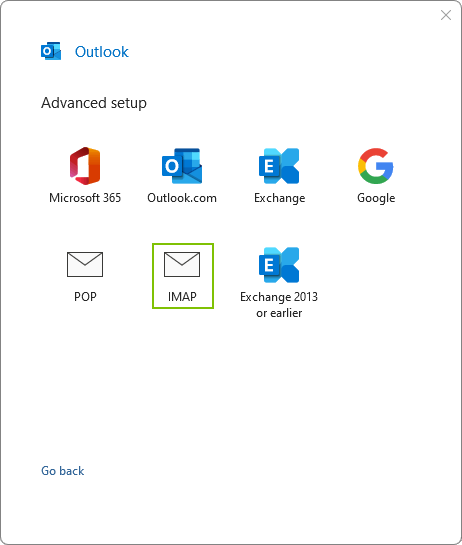
Step 4. Click on the option IMAP.
Step 5. Select Import emails from my other account (POP3) and click Next.
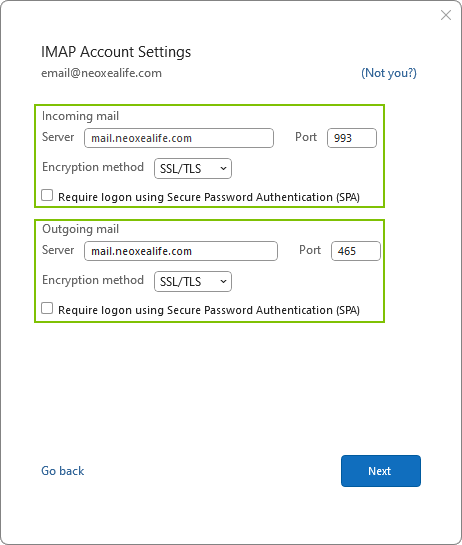
Step 6. For Username, enter the full email address.

Step 7. For Username, enter the full email address.
Outgoing Email (IMAP)
Microsoft Outlook should be able to setup Outgoing Email definitions automatically, but we recommend that you double-check to confirm your setup is good to go.
Step 8. Open your Microsoft Outlook application and click File.
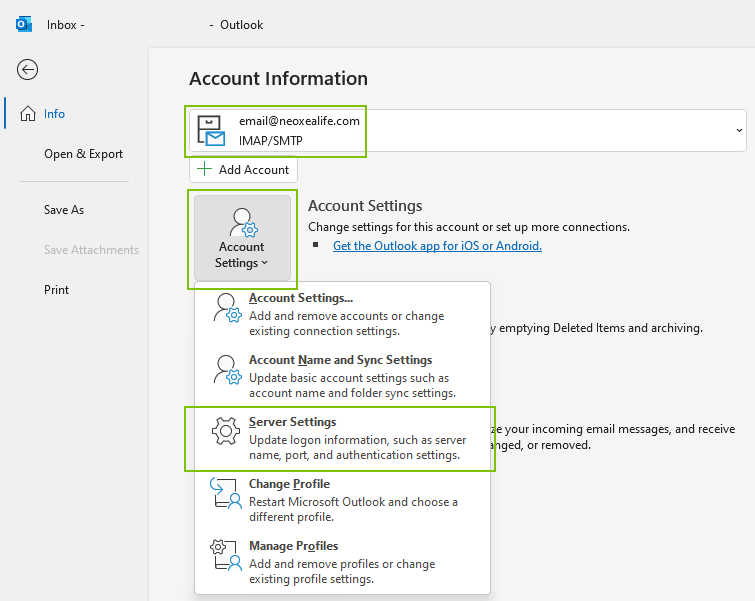
Step 9. In case you have more than one mailbox configured, you need to select the mailbox you want to check configurations for. In our example, we continue with the email address “[email protected]”.
After the previous selection, click on the Account Settings buttom and then click on Server Settings option to show advanced settings.
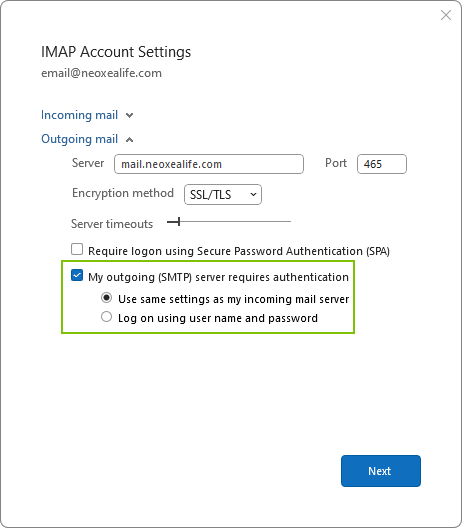
Step 10. On the Outgoing mail settings, make sure “My outgoing (SMTP) server requires authentication” option is enabled and also the option “Use the same settings as my incoming mail server” is selected. Click Next to proceed.
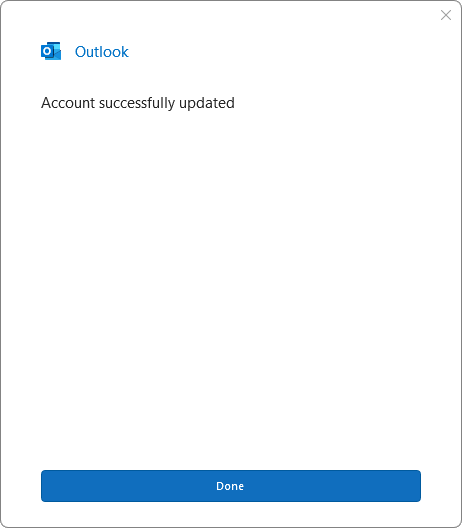
Step 11. After Microsoft Outlook update your settings, you have successfuly setup your email in Outlook and are now ready to send and receive messages. Click Done.